> ## Documentation Index
> Fetch the complete documentation index at: https://docs.daydreamvideo.com/llms.txt
> Use this file to discover all available pages before exploring further.
# How to add b-roll clips to your timeline using AI
> Use Daydream to find any scene from your footage by describing it. No more scrubbing through hours of footage. Just ask Claude Code or Codex to find clips for you.
Daydream watches the footage you import, so you can search for b-roll just by describing it. Say what you want to show and Daydream finds a matching clip in your own footage and places it on the timeline. Ask Claude Code or Codex to do this for you, or search and place clips yourself.
## Import your footage first
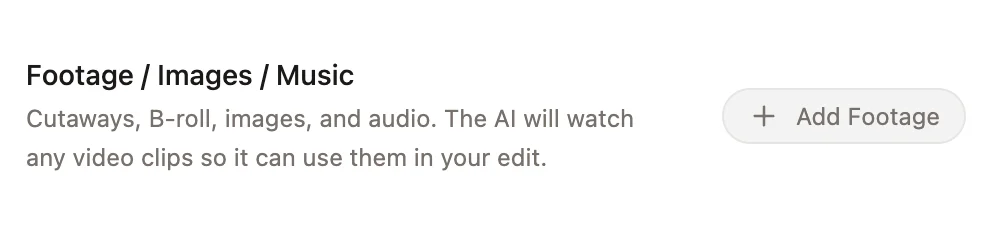
Before you can add b-roll, import the clips you want to draw from under **Footage / Images / Music**. Click **Add Footage** and select your videos, images, or audio. Daydream watches your video clips and indexes them so it can search them later.
 Only footage you import here is searchable. Your voiceover is not used as b-roll.
## Add b-roll with Claude Code or Codex
Once your footage is imported, ask Claude Code or Codex to add b-roll by describing what you want to show. The agent searches your footage and places matching clips on the timeline. For example:
* "Add b-roll of a city skyline over the intro."
* "Find a clip of someone typing on a laptop for the part about coding."
* "Add b-roll throughout the section where I talk about travel."
The agent works from your transcript and your footage, so you can point it at any part of your video and let it find the right clip.
## Add b-roll yourself
You can also search and place b-roll on your own. Start from either the transcript or the timeline, then describe the clip you want and Daydream finds matching footage to drop in.
### From the transcript
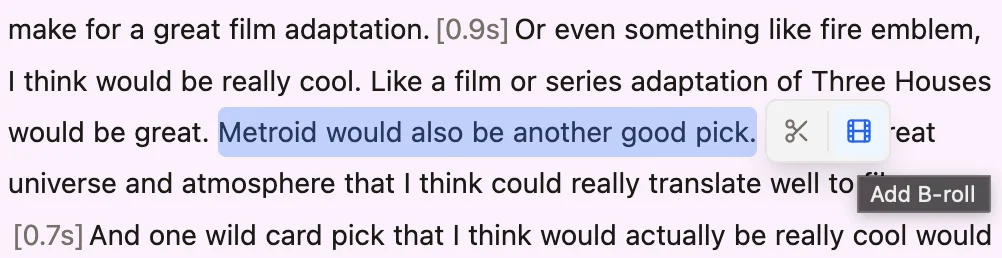
Select the text for the section you want to cover, then click **Add B-roll**. A search opens where you describe the clip you want.
Only footage you import here is searchable. Your voiceover is not used as b-roll.
## Add b-roll with Claude Code or Codex
Once your footage is imported, ask Claude Code or Codex to add b-roll by describing what you want to show. The agent searches your footage and places matching clips on the timeline. For example:
* "Add b-roll of a city skyline over the intro."
* "Find a clip of someone typing on a laptop for the part about coding."
* "Add b-roll throughout the section where I talk about travel."
The agent works from your transcript and your footage, so you can point it at any part of your video and let it find the right clip.
## Add b-roll yourself
You can also search and place b-roll on your own. Start from either the transcript or the timeline, then describe the clip you want and Daydream finds matching footage to drop in.
### From the transcript
Select the text for the section you want to cover, then click **Add B-roll**. A search opens where you describe the clip you want.
 ### From the timeline
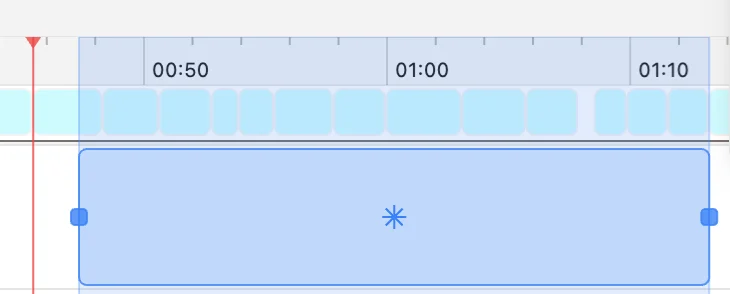
Right-click and drag on the timeline to select the range you want to cover. A search opens where you describe the clip, and Daydream adds it for that duration.
### From the timeline
Right-click and drag on the timeline to select the range you want to cover. A search opens where you describe the clip, and Daydream adds it for that duration.