> ## Documentation Index
> Fetch the complete documentation index at: https://docs.daydreamvideo.com/llms.txt
> Use this file to discover all available pages before exploring further.
# How to export to DaVinci Resolve, Premiere, or Final Cut
> Export your Daydream timeline as a watermark-free MP4, or as XML for Final Cut Pro, DaVinci Resolve, and Premiere Pro to keep editing in your favorite app.
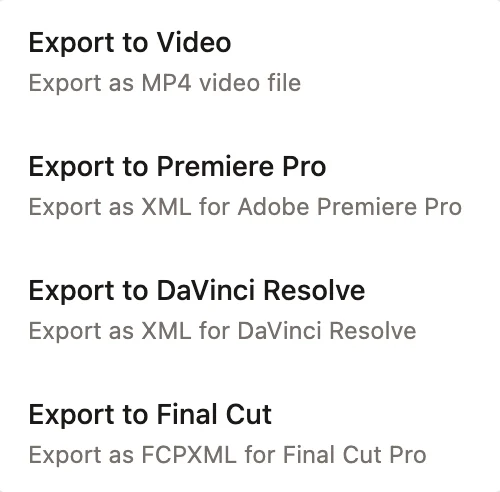
When your edit is done, click the **Export** button. You can export a finished MP4 video, or hand your timeline off to Final Cut, DaVinci Resolve, or Premiere to keep working in another editor.
 ## Export a video file (MP4)
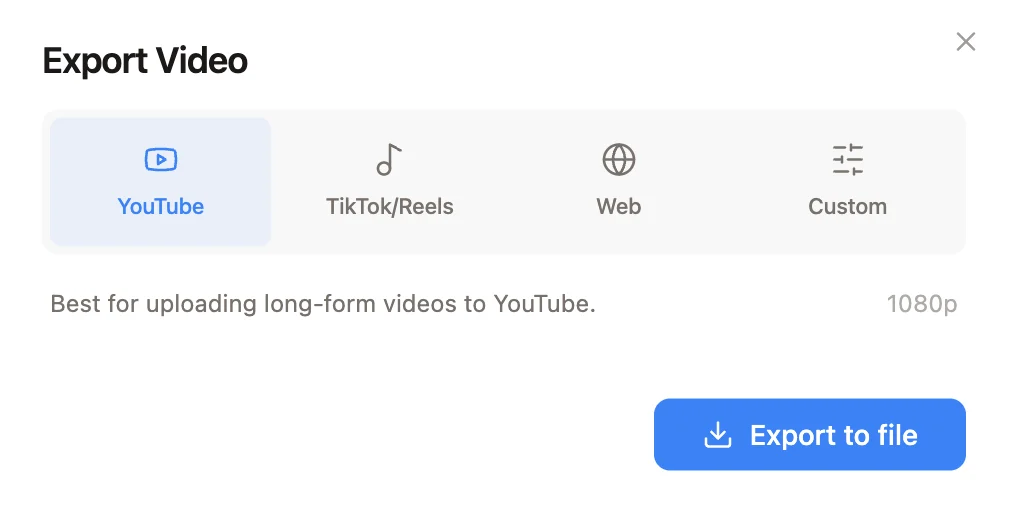
Choose **Export to Video**. Pick the preset that matches where the video is going, then click **Export to file**:
* **YouTube** for long-form video
* **TikTok/Reels** for short-form video
* **Web** for general online use
* **Custom** to set your own resolution and quality
Your videos export watermark-free.
## Export a video file (MP4)
Choose **Export to Video**. Pick the preset that matches where the video is going, then click **Export to file**:
* **YouTube** for long-form video
* **TikTok/Reels** for short-form video
* **Web** for general online use
* **Custom** to set your own resolution and quality
Your videos export watermark-free.
 ## Export to Final Cut, DaVinci Resolve, or Premiere
Daydream allows you to keep all of your current edits and continue editing in another app. Choose the matching option from the Export menu:
* **Export to Premiere Pro** creates an XML for Adobe Premiere Pro
* **Export to DaVinci Resolve** creates an XML for DaVinci Resolve
* **Export to Final Cut** creates an FCPXML for Final Cut Pro
These files reference your original footage instead of bundling it, so keep your source files where they are. You may need to relink the media in your editor.
Then import the file:
* **Final Cut Pro**: File > Import > XML
* **DaVinci Resolve**: File > Import > Timeline
* **Premiere Pro**: File > Import, then select the file
## Export to Final Cut, DaVinci Resolve, or Premiere
Daydream allows you to keep all of your current edits and continue editing in another app. Choose the matching option from the Export menu:
* **Export to Premiere Pro** creates an XML for Adobe Premiere Pro
* **Export to DaVinci Resolve** creates an XML for DaVinci Resolve
* **Export to Final Cut** creates an FCPXML for Final Cut Pro
These files reference your original footage instead of bundling it, so keep your source files where they are. You may need to relink the media in your editor.
Then import the file:
* **Final Cut Pro**: File > Import > XML
* **DaVinci Resolve**: File > Import > Timeline
* **Premiere Pro**: File > Import, then select the file