> ## Documentation Index
> Fetch the complete documentation index at: https://docs.daydreamvideo.com/llms.txt
> Use this file to discover all available pages before exploring further.
# How to remove bad takes, silences, and filler words using AI
> Use Daydream to cut bad takes, silences, and filler words from your videos. Edit the transcript directly or let Claude Code or Codex clean it up for you.
The fastest way to clean up a voiceover in Daydream is to let the AI do it. Daydream transcribes your voiceover, so agents like Claude Code and Codex can read it like text and cut bad takes, silences, and filler words for you. You can also edit the transcript directly yourself.
## Transcribe your voiceover
Once you've imported an asset as a voiceover, go to the **Editor** tab and transcribe it:
* For a video file, click **Transcribe Video**.
* For an audio file, click **Transcribe Voiceover**.
You can select multiple files at once. Daydream transcribes them and adds them to your timeline automatically.
## Remove silences, filler words, and bad takes with Claude Code or Codex
Claude Code and Codex work from your transcript, so they read your voiceover the way you do. That gives them a lot of flexibility in how they make cuts. For example:
* "Cut the filler words and long pauses from my voiceover."
* "Remove the second take of the intro and keep the best one."
* "Remove the section where I was talking about..."
The agent makes the cuts on your transcript and the timeline updates automatically. You can always review and edit the cuts in the **Editor** tab using the **Show cuts** toggle.
## Edit the transcript directly
You can also edit the transcript directly yourself. In the **Editor** tab, select the text you want to cut and press delete or click the scissors icon. Your timeline will automatically update accordingly.
This works for a bad take or any line you don't want. Pauses show up inline in the transcript as markers like `[...0.4s]`, so you can see and cut them too.
 ## Review and restore your cuts
In the **Editor** tab, toggle **Show cuts** to see everything that's been removed. Cut text appears with a strikethrough.
## Review and restore your cuts
In the **Editor** tab, toggle **Show cuts** to see everything that's been removed. Cut text appears with a strikethrough.
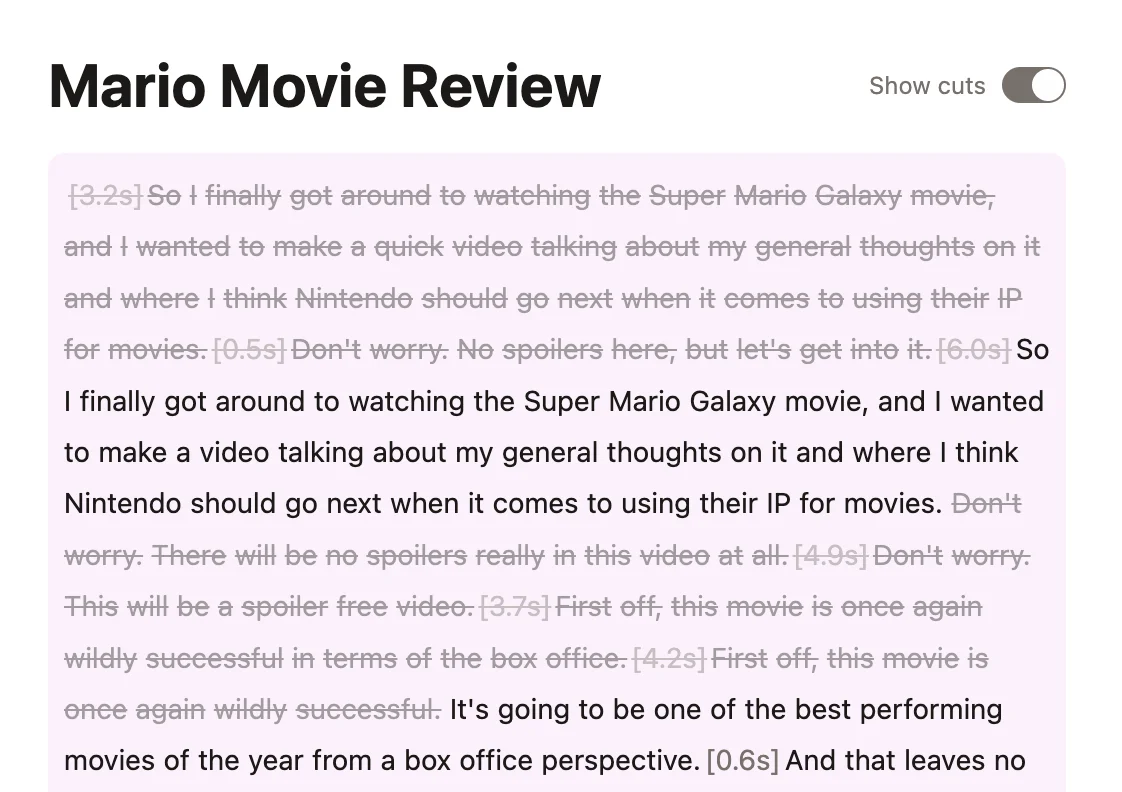 To bring a section back, select the struck-through text and press backspace, or click the revert button.