> ## Documentation Index
> Fetch the complete documentation index at: https://docs.daydreamvideo.com/llms.txt
> Use this file to discover all available pages before exploring further.
# How to connect Daydream to Claude Code or Codex
> Use Claude Code or Codex to edit your videos inside Daydream's built-in chat. Just sign in with your Claude or ChatGPT account.
Daydream can edit videos using the in-app chat that's connected to Claude Code or Codex. Ask for an edit in plain language and the agent will edit your timeline directly.
Connecting Claude Code and Codex to Daydream is simple and easy. Daydream sets up Claude Code and Codex automatically in the background, so the only step you perform is signing in with your Claude or ChatGPT account.
 ## Connect an agent
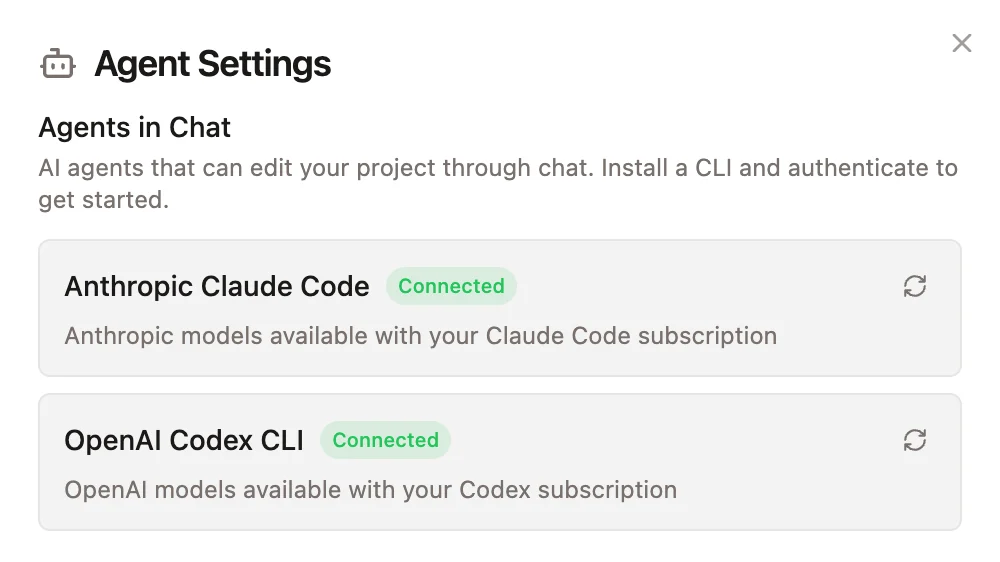
When you first launch Daydream, you will see a welcome screen that shows you your connection status to Claude Code and Codex. You can also open it any time under **Agent Settings**, which has a tab for each agent (Claude Code / Codex).
Click **▷ Log in** on the card. Your browser opens to sign in:
* **Claude Code**: sign in with your Claude account.
* **Codex**: sign in with your ChatGPT account.
Claude may show **Paste your login code here (if prompted)**. Paste the code from the browser into that field in the app.
The card flips to **Connected** showing **Signed in as [your@email.com](mailto:your@email.com) · your plan**. Once you have at least one agent connected,
you should be good to go.
## Agent status
Each card shows a status:
| Status | Meaning / action |
| ------------------------------------------------------------------ | ----------------------------------------------------------------------------------------------------------------------------- |
| **Connected** — "Signed in as …" | Ready to use. **▷ Switch account** re-runs sign-in if you want a different account. |
| **Not Connected** — "Sign in with your Claude/ChatGPT account…" | Click **▷ Log in**. |
| **"Couldn't set up … automatically. Retry or set it up manually"** | Click **Retry** (requires internet). Manual setup means installing the CLI yourself. See [Set up manually](#set-up-manually). |
| **"Couldn't check …'s status. Try refreshing"** | Click the refresh icon. Logging in again also resolves it. |
## Troubleshooting
**Setup fails or stalls.** Check your internet connection and click **Retry**. On restrictive networks such as corporate proxies, automatic setup may fail; the manual-install fallback below works there. If you already had Claude Code or Codex installed and working, you can keep using it as-is regardless. In some instances, restarting the app may also help.
**Browser didn't open during login.** Click the highlighted link shown in the login panel inside the app.
**Finished signing in but the card didn't update.** Click back into the Daydream window (it re-checks automatically), or hit the refresh icon on the card.
**Work or organization accounts** (Claude Team/Enterprise, SSO) are fully supported. Sign in with your work email and the card will show your organization and plan.
**Chat says "Connect an agent to start editing."** Open Agent Settings and complete the **Log in** step for either agent.
## Set up manually
If automatic setup can't complete (for example, on a restrictive network), install the CLI yourself:
* **Claude Code**: follow the [Claude Code quickstart](https://code.claude.com/docs/en/quickstart).
* **Codex**: follow the [Codex CLI docs](https://developers.openai.com/codex/cli).
Once the CLI is installed and you're logged in, Daydream picks it up automatically.
## Alternative: Connect to Daydream from your own terminal
The steps above let you use Claude Code or Codex inside Daydream's chat panel. Alternatively, you can connect to Daydream directly from wherever you already use Claude Code or Codex. For more details, see [How to connect to Daydream via MCP](/guides/connect-mcp).
## Connect an agent
When you first launch Daydream, you will see a welcome screen that shows you your connection status to Claude Code and Codex. You can also open it any time under **Agent Settings**, which has a tab for each agent (Claude Code / Codex).
Click **▷ Log in** on the card. Your browser opens to sign in:
* **Claude Code**: sign in with your Claude account.
* **Codex**: sign in with your ChatGPT account.
Claude may show **Paste your login code here (if prompted)**. Paste the code from the browser into that field in the app.
The card flips to **Connected** showing **Signed in as [your@email.com](mailto:your@email.com) · your plan**. Once you have at least one agent connected,
you should be good to go.
## Agent status
Each card shows a status:
| Status | Meaning / action |
| ------------------------------------------------------------------ | ----------------------------------------------------------------------------------------------------------------------------- |
| **Connected** — "Signed in as …" | Ready to use. **▷ Switch account** re-runs sign-in if you want a different account. |
| **Not Connected** — "Sign in with your Claude/ChatGPT account…" | Click **▷ Log in**. |
| **"Couldn't set up … automatically. Retry or set it up manually"** | Click **Retry** (requires internet). Manual setup means installing the CLI yourself. See [Set up manually](#set-up-manually). |
| **"Couldn't check …'s status. Try refreshing"** | Click the refresh icon. Logging in again also resolves it. |
## Troubleshooting
**Setup fails or stalls.** Check your internet connection and click **Retry**. On restrictive networks such as corporate proxies, automatic setup may fail; the manual-install fallback below works there. If you already had Claude Code or Codex installed and working, you can keep using it as-is regardless. In some instances, restarting the app may also help.
**Browser didn't open during login.** Click the highlighted link shown in the login panel inside the app.
**Finished signing in but the card didn't update.** Click back into the Daydream window (it re-checks automatically), or hit the refresh icon on the card.
**Work or organization accounts** (Claude Team/Enterprise, SSO) are fully supported. Sign in with your work email and the card will show your organization and plan.
**Chat says "Connect an agent to start editing."** Open Agent Settings and complete the **Log in** step for either agent.
## Set up manually
If automatic setup can't complete (for example, on a restrictive network), install the CLI yourself:
* **Claude Code**: follow the [Claude Code quickstart](https://code.claude.com/docs/en/quickstart).
* **Codex**: follow the [Codex CLI docs](https://developers.openai.com/codex/cli).
Once the CLI is installed and you're logged in, Daydream picks it up automatically.
## Alternative: Connect to Daydream from your own terminal
The steps above let you use Claude Code or Codex inside Daydream's chat panel. Alternatively, you can connect to Daydream directly from wherever you already use Claude Code or Codex. For more details, see [How to connect to Daydream via MCP](/guides/connect-mcp).