> ## Documentation Index
> Fetch the complete documentation index at: https://docs.daydreamvideo.com/llms.txt
> Use this file to discover all available pages before exploring further.
# How to connect an AI agent to Daydream via MCP
> Connect an external Claude Code or Codex session, or any MCP client, to Daydream's local MCP server so you can edit your project from your terminal.
Daydream runs a local MCP server that lets an external agent control Daydream. Connect from a Claude Code or Codex session running in your own terminal, or from any other MCP client, and edit your project from the tools you already use.
To connect with Claude Code or Codex, first install the CLI and log in. If you only want to edit inside Daydream's chat, you don't need MCP at all. Either way, that setup lives in [How to connect Daydream to Claude Code or Codex](/guides/connect-claude-code-codex).
## How the MCP connection works
When the MCP integration is enabled, Daydream registers its server automatically each time the app starts, so in most cases there's nothing to set up.
A few things to know:
* The Daydream MCP server runs locally at `http://127.0.0.1:7433/mcp`.
* **Daydream must be running** for an external agent to connect.
* You can toggle auto-registration on or off per agent in **Agent Settings → MCP Integrations in Terminal**.
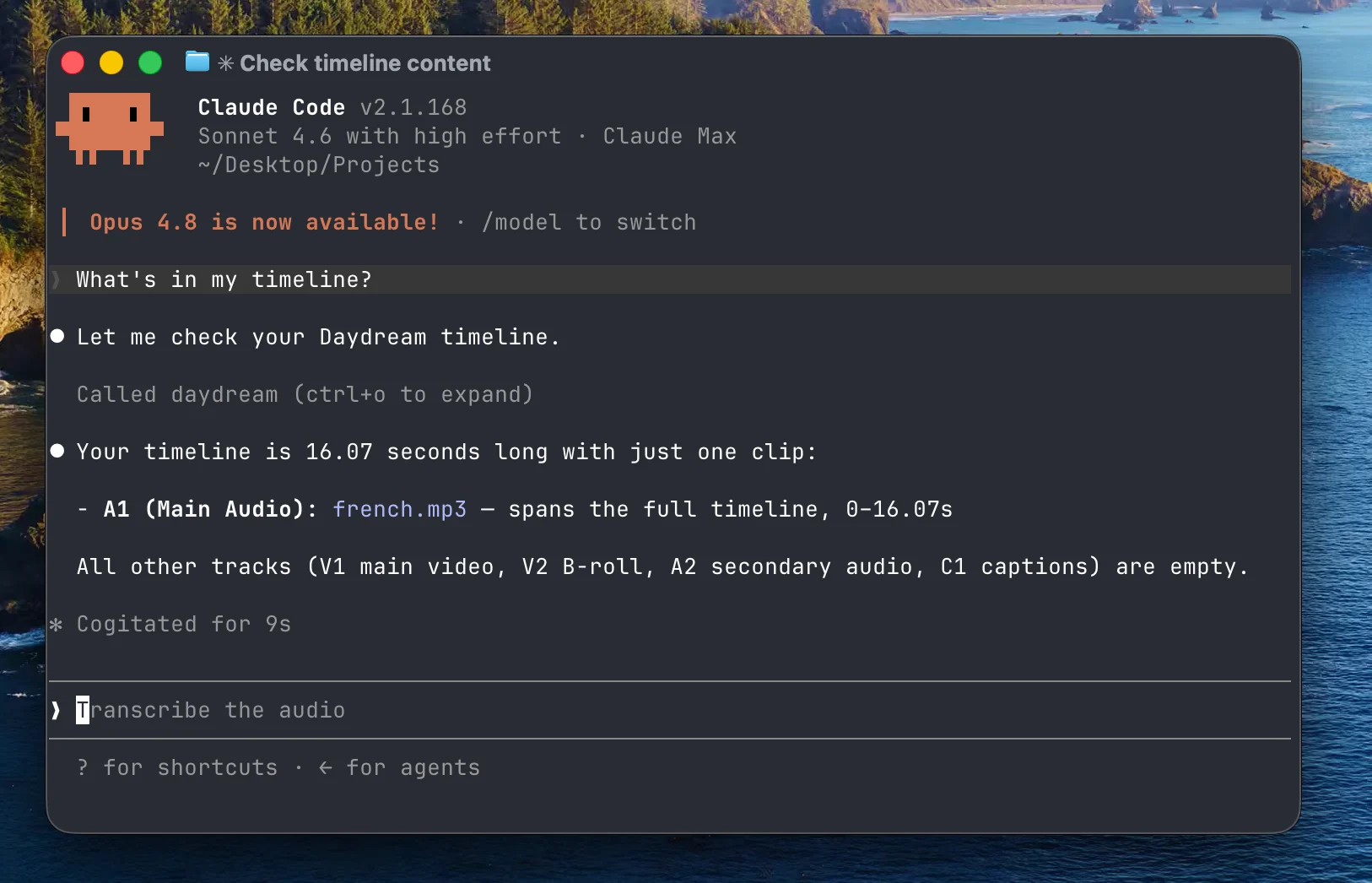 ## What you can do over MCP
Once connected, the agent controls Daydream the same way it does inside the chat. From your terminal, you can ask it to:
* Import footage and transcribe it
* Cut your voiceover by editing the transcript
* Search your b-roll and place clips on the timeline
* Generate captions and motion graphics
* Export your timeline to MP4 or XML
The agent reads the state of your open project and makes the edits while Daydream stays in sync.
## Register the MCP server manually
If you'd rather register the server yourself, run the matching command in your terminal while Daydream is running:
```bash theme={null}
claude mcp add daydream --transport http http://127.0.0.1:7433/mcp --scope user
```
```bash theme={null}
codex mcp add daydream --url http://127.0.0.1:7433/mcp
```
This registers an MCP server named `daydream`. To remove it later:
```bash theme={null}
claude mcp remove daydream --scope user
```
```bash theme={null}
codex mcp remove daydream
```
## Connect other MCP clients
Any MCP client that supports an HTTP transport can connect to the same address, `http://127.0.0.1:7433/mcp`. Point your client at that URL while Daydream is running.
## If your agent can't connect
Work through these checks:
* **Make sure Daydream is open.** The MCP server only runs while the app is running.
* **Confirm the integration is enabled** in **Agent Settings → MCP Integrations in Terminal**.
* **Check the address** your client is using. It should be `http://127.0.0.1:7433/mcp`.
* **Re-run the registration** if you set it up manually. Run the `mcp add` command above again while Daydream is running.
## What you can do over MCP
Once connected, the agent controls Daydream the same way it does inside the chat. From your terminal, you can ask it to:
* Import footage and transcribe it
* Cut your voiceover by editing the transcript
* Search your b-roll and place clips on the timeline
* Generate captions and motion graphics
* Export your timeline to MP4 or XML
The agent reads the state of your open project and makes the edits while Daydream stays in sync.
## Register the MCP server manually
If you'd rather register the server yourself, run the matching command in your terminal while Daydream is running:
```bash theme={null}
claude mcp add daydream --transport http http://127.0.0.1:7433/mcp --scope user
```
```bash theme={null}
codex mcp add daydream --url http://127.0.0.1:7433/mcp
```
This registers an MCP server named `daydream`. To remove it later:
```bash theme={null}
claude mcp remove daydream --scope user
```
```bash theme={null}
codex mcp remove daydream
```
## Connect other MCP clients
Any MCP client that supports an HTTP transport can connect to the same address, `http://127.0.0.1:7433/mcp`. Point your client at that URL while Daydream is running.
## If your agent can't connect
Work through these checks:
* **Make sure Daydream is open.** The MCP server only runs while the app is running.
* **Confirm the integration is enabled** in **Agent Settings → MCP Integrations in Terminal**.
* **Check the address** your client is using. It should be `http://127.0.0.1:7433/mcp`.
* **Re-run the registration** if you set it up manually. Run the `mcp add` command above again while Daydream is running.