Import your footage first
Before you can add b-roll, import the clips you want to draw from under Footage / Images / Music. Click Add Footage and select your videos, images, or audio. Daydream watches your video clips and indexes them so it can search them later.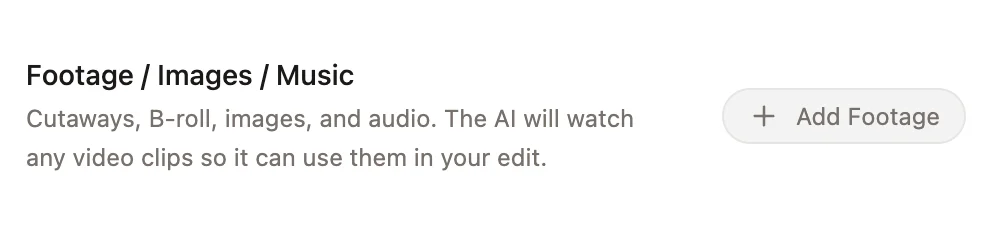
Add b-roll with Claude Code or Codex
Once your footage is imported, ask Claude Code or Codex to add b-roll by describing what you want to show. The agent searches your footage and places matching clips on the timeline. For example:- “Add b-roll of a city skyline over the intro.”
- “Find a clip of someone typing on a laptop for the part about coding.”
- “Add b-roll throughout the section where I talk about travel.”
Add b-roll yourself
You can also search and place b-roll on your own. Start from either the transcript or the timeline, then describe the clip you want and Daydream finds matching footage to drop in.From the transcript
Select the text for the section you want to cover, then click Add B-roll. A search opens where you describe the clip you want.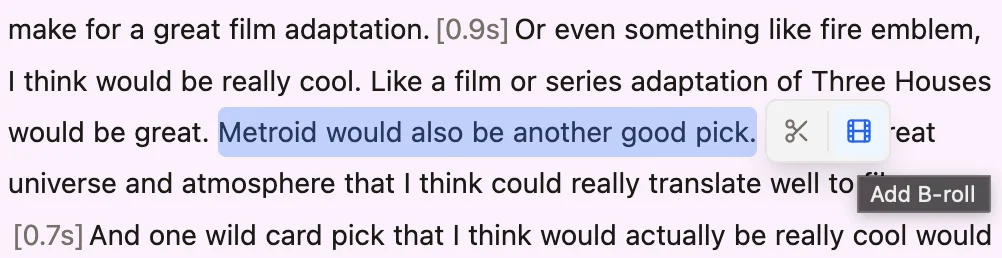
From the timeline
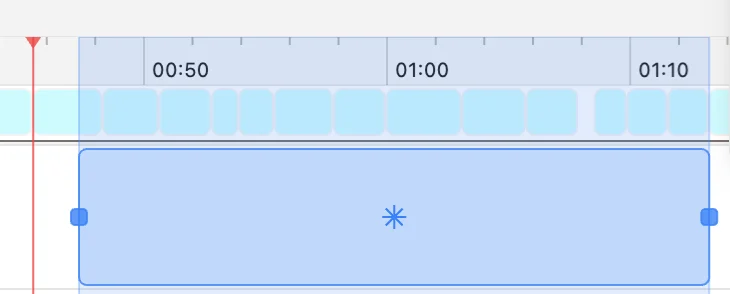
Right-click and drag on the timeline to select the range you want to cover. A search opens where you describe the clip, and Daydream adds it for that duration.