Transcribe your voiceover
Once you’ve imported an asset as a voiceover, go to the Editor tab and transcribe it:- For a video file, click Transcribe Video.
- For an audio file, click Transcribe Voiceover.
Remove silences, filler words, and bad takes with Claude Code or Codex
Claude Code and Codex work from your transcript, so they read your voiceover the way you do. That gives them a lot of flexibility in how they make cuts. For example:- “Cut the filler words and long pauses from my voiceover.”
- “Remove the second take of the intro and keep the best one.”
- “Remove the section where I was talking about…”
Edit the transcript directly
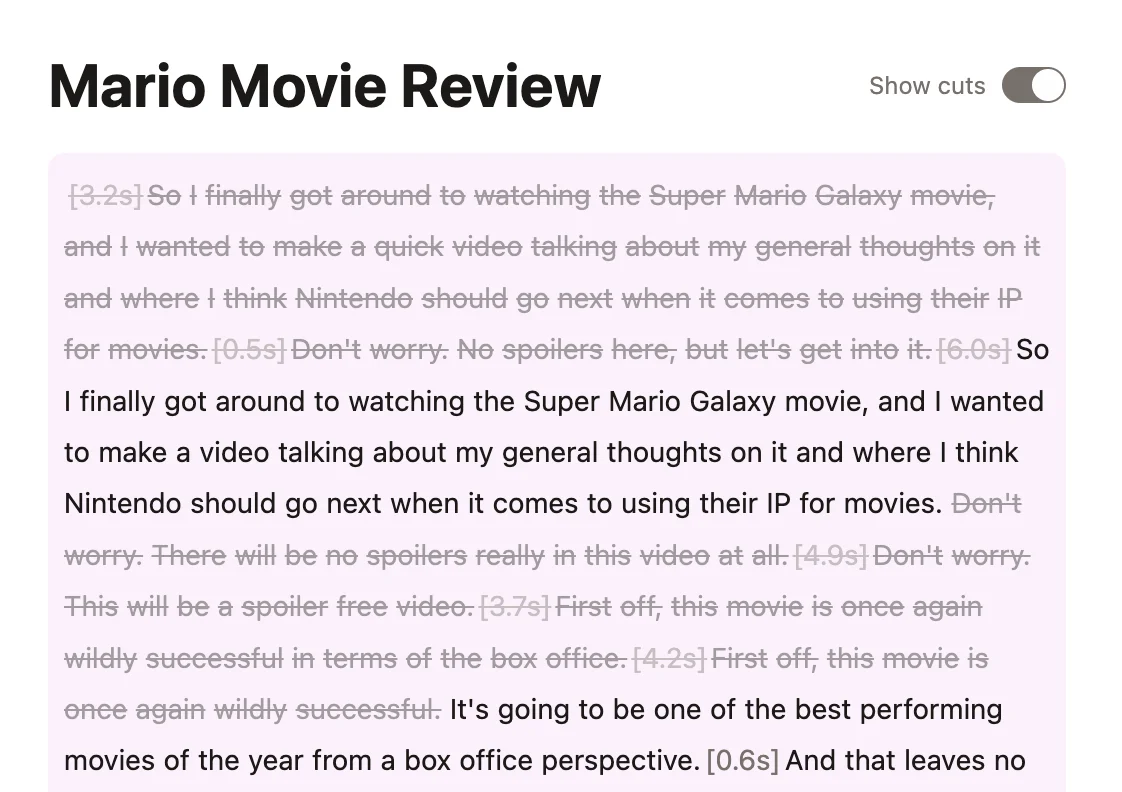
You can also edit the transcript directly yourself. In the Editor tab, select the text you want to cut and press delete or click the scissors icon. Your timeline will automatically update accordingly. This works for a bad take or any line you don’t want. Pauses show up inline in the transcript as markers like[...0.4s], so you can see and cut them too.

Review and restore your cuts
In the Editor tab, toggle Show cuts to see everything that’s been removed. Cut text appears with a strikethrough.