
Connect an agent
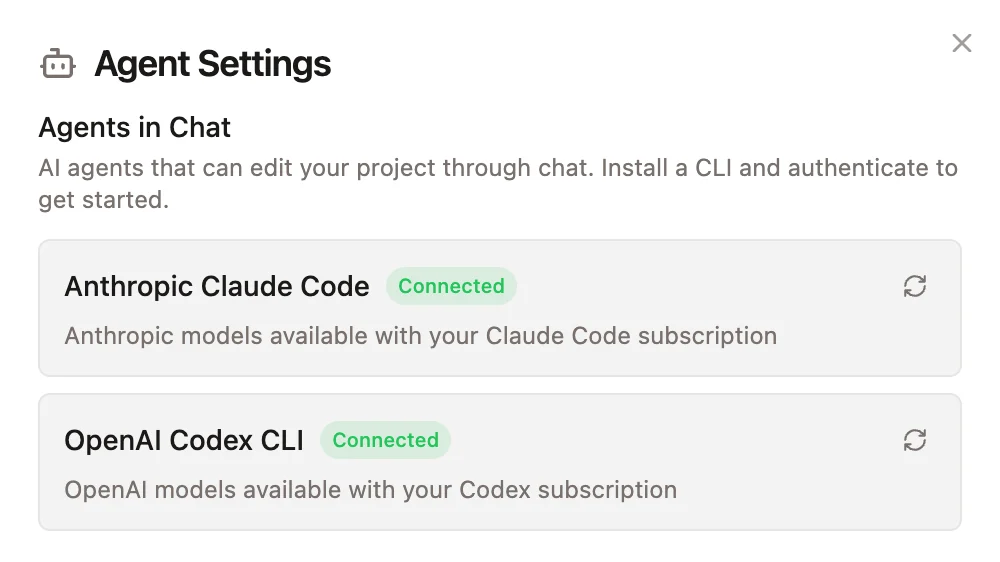
When you first launch Daydream, you will see a welcome screen that shows you your connection status to Claude Code and Codex. You can also open it any time under Agent Settings, which has a tab for each agent (Claude Code / Codex).1
Log in
Click ▷ Log in on the card. Your browser opens to sign in:
- Claude Code: sign in with your Claude account.
- Codex: sign in with your ChatGPT account.
2
Connected
The card flips to Connected showing Signed in as your@email.com · your plan. Once you have at least one agent connected,
you should be good to go.
Agent status
Each card shows a status:Troubleshooting
Setup fails or stalls. Check your internet connection and click Retry. On restrictive networks such as corporate proxies, automatic setup may fail; the manual-install fallback below works there. If you already had Claude Code or Codex installed and working, you can keep using it as-is regardless. In some instances, restarting the app may also help. Browser didn’t open during login. Click the highlighted link shown in the login panel inside the app. Finished signing in but the card didn’t update. Click back into the Daydream window (it re-checks automatically), or hit the refresh icon on the card. Work or organization accounts (Claude Team/Enterprise, SSO) are fully supported. Sign in with your work email and the card will show your organization and plan. Chat says “Connect an agent to start editing.” Open Agent Settings and complete the Log in step for either agent.Set up manually
If automatic setup can’t complete (for example, on a restrictive network), install the CLI yourself:- Claude Code: follow the Claude Code quickstart.
- Codex: follow the Codex CLI docs.