
Export a video file (MP4)
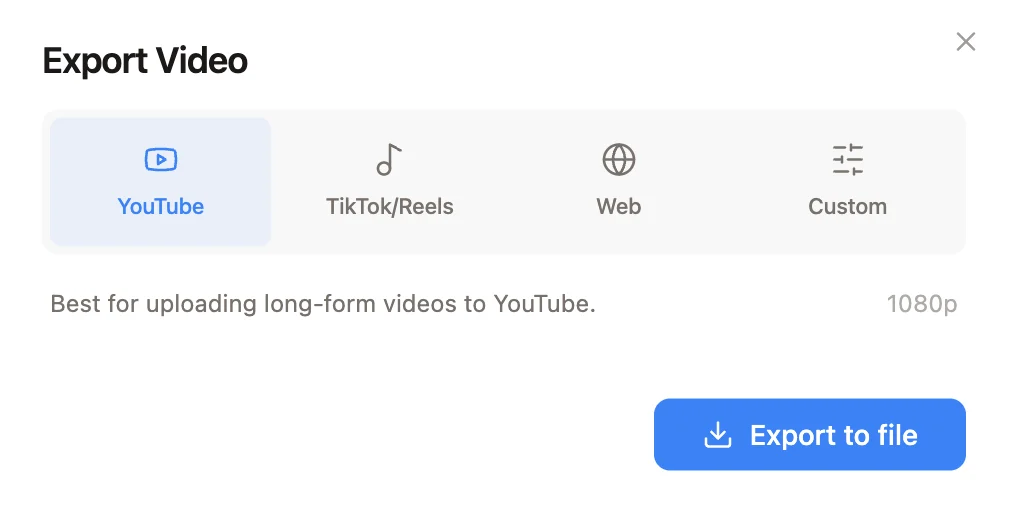
Choose Export to Video. Pick the preset that matches where the video is going, then click Export to file:- YouTube for long-form video
- TikTok/Reels for short-form video
- Web for general online use
- Custom to set your own resolution and quality
Export to Final Cut, DaVinci Resolve, or Premiere
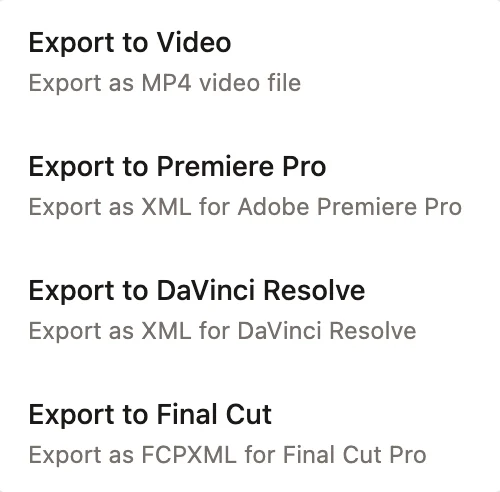
Daydream allows you to keep all of your current edits and continue editing in another app. Choose the matching option from the Export menu:- Export to Premiere Pro creates an XML for Adobe Premiere Pro
- Export to DaVinci Resolve creates an XML for DaVinci Resolve
- Export to Final Cut creates an FCPXML for Final Cut Pro
- Final Cut Pro: File > Import > XML
- DaVinci Resolve: File > Import > Timeline
- Premiere Pro: File > Import, then select the file